We will create a secondary navigation bar like this screenshot.
#1. First, you need to enable the Announcement Bar.

 #2. Next, add 3 texts (with links): Facebook, Instagram, Youtube.
 And Logo text + Logo link in Line 2 (we will use code to turn Logo text to Logo Image in below steps).
 we will have
 #3. Edit Site Footer > Add a Code Block > Paste this code
(Note: Code Block is available in Personal Plan, and this code can run on Personal Plan)
<link rel="stylesheet" href="https://cdnjs.cloudflare.com/ajax/libs/font-awesome/6.1.1/css/all.min.css" integrity="sha512-KfkfwYDsLkIlwQp6LFnl8zNdLGxu9YAA1QvwINks4PhcElQSvqcyVLLD9aMhXd13uQjoXtEKNosOWaZqXgel0g==" crossorigin="anonymous" referrerpolicy="no-referrer" />

#4. Use this code to Custom CSS box to turn text Facebook/Instagram/Youtube to Icons
div#announcement-bar-text-inner-id {
  /* remove links underline */
  p a {
    text-decoration: none !important;
}
  /* text to icons */
  a[href*="facebook"], a[href*="instagram"], a[href*="youtube"] {
    font-size: 0;
}
a[href*="facebook"]:before {
    content: "\f09a";
    font-family: "Font Awesome 6 Brands";
    font-weight: bold;
    font-size: 16px;
    margin-left: 5px;
  margin-right: 5px;
  display: inline-block;
}
a[href*="instagram"]:before {
    content: "\f16d";
    font-family: "Font Awesome 6 Brands";
    font-weight: bold;
    font-size: 16px;
    margin-left: 5px;
  margin-right: 5px;
  display: inline-block;
}
a[href*="youtube"]:before {
    content: "\f167";
    font-family: "Font Awesome 6 Brands";
    font-weight: bold;
    font-size: 16px;
  margin-left: 5px;
  margin-right: 5px;
  display: inline-block;
}
}

we will have

#5. Use this code to Custom CSS box both make both the same line.
@media screen and (min-width:768px) {
    div#announcement-bar-text-inner-id {
    display: flex;
    align-items: center;
    justify-content: space-between;
}}

#6. Use this code to Custom CSS box to turn Logo text to Image. Replace Pixabay with your logo image url.
div#announcement-bar-text-inner-id p:nth-child(2) a {
    background-image: url(https://cdn.pixabay.com/photo/2024/05/26/10/15/bird-8788491_1280.jpg);
    background-size: contain;
    background-repeat: no-repeat;
    background-position: center;
    color: transparent !important;
    display: inline-block;
    width: 100px;
    height: 70px;
}
 We will have

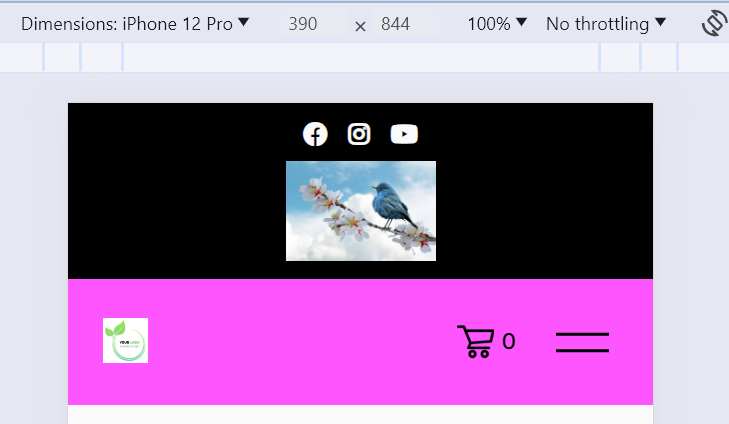 #6.1. To move Social Icons closer Logo, like this

We can use this code to Custom CSS
@media screen and (min-width:768px) {
  div#announcement-bar-text-inner-id {
        display: flex;
        align-items: center;
        justify-content: flex-end !important;
}
div#announcement-bar-text-inner-id p {
    margin-left: 10px;
}
}
 #7. To change the Announcement Bar background, you can change the Site Style.

#8. To remove the Announcement Bar X Close icon, you can use this CSS code
span.sqs-announcement-bar-close {
    display: none;
}
