To achieve this list style, you can follow these steps:

#1. First, you can follow this guide to move the Title above the Image
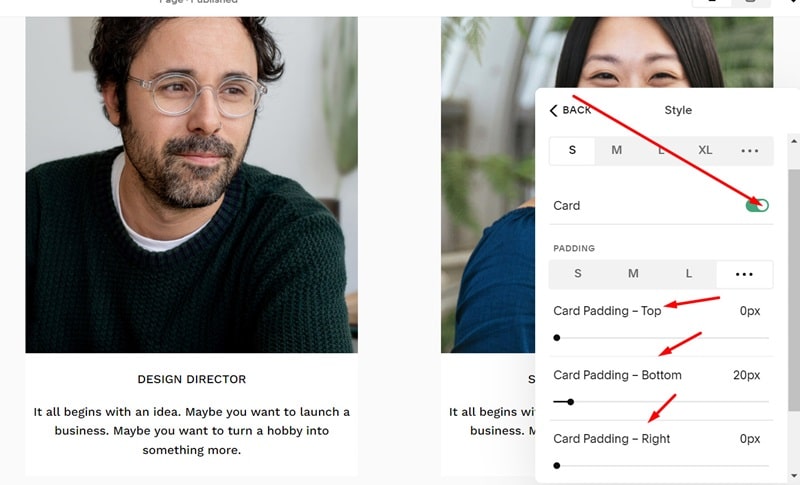
#2. Next, edit List Section > Choose this option to set a White Background Card.
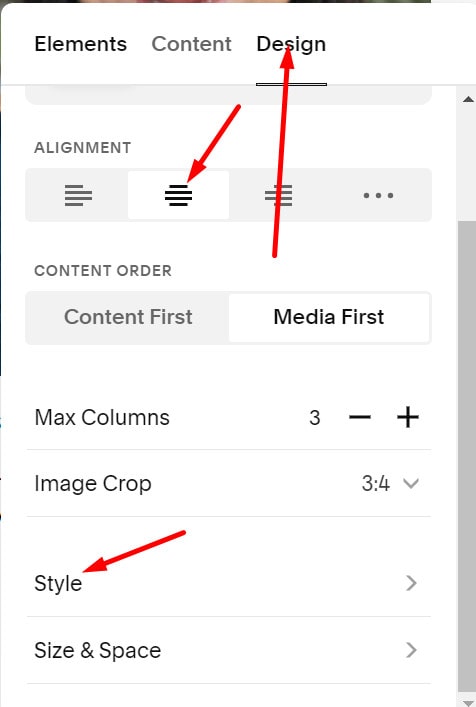
Design > Style
Choose Card > Then you can adjust padding top/bottom/left/right
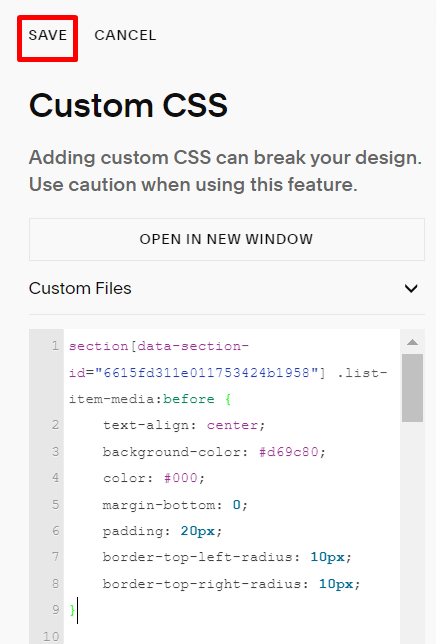
#3. Use this code to the Custom CSS box
section[data-section-id="6615fd311e011753424b1958"] .list-item-media:before {
    text-align: center;
    background-color: #d69c80;
    color: #000;
    margin-bottom: 0;
    padding: 20px;
    border-top-left-radius: 10px;
    border-top-right-radius: 10px;
}
#4. Combine both codes (current code + code in #1 guide), you will have this code
section[data-section-id="6615fd311e011753424b1958"] {
.list-item-media:before {
    font-weight: 600;
    font-size: 28px;
    margin-bottom: 20px;
    display: block;
}
li:nth-child(1) .list-item-media:before {
    content: "Monet Goode";
}
li:nth-child(2) .list-item-media:before {
    content: "Emmett Marsh";
}
li:nth-child(3) .list-item-media:before {
    content: "Eleanor Parks";
}
.list-item-media:before {
    text-align: center;
    background-color: #d69c80;
    color: #000;
    margin-bottom: 0;
    padding: 20px;
    border-top-left-radius: 10px;
    border-top-right-radius: 10px;
}
}