Demo: https://tuanphan3.squarespace.com/hover-image-show-image?noredirect
Pass: abc
Suppose you have 4 images. When users hover on each image, you want: the image on the right (or anywhere) will change to a different image.

#1. First, add 4 images on the left – and 4 images on the right

#2. Install Squarespace ID Finder
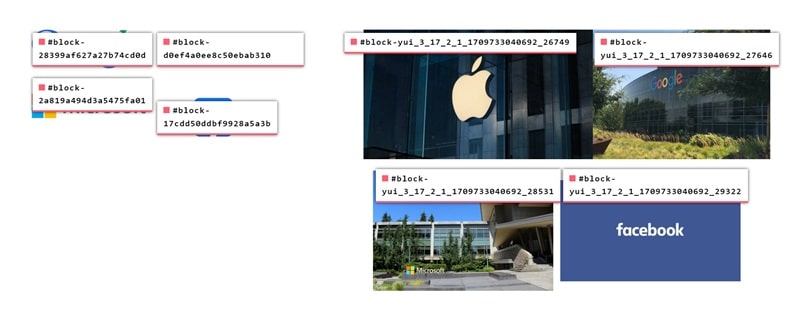
And find the ID of 8 Images.
In my example, we will have
Left Images:
- Google: #block-28399af627a27b74cd0d
- Apple: #block-d0ef4a0ee8c50ebab310
- Microsoft: #block-2a819a494d3a5475fa01
- Facebook: #block-17cdd50ddbf9928a5a3b
Right Images:
- Google: #block-yui_3_17_2_1_1709733040692_27646
- Apple: #block-yui_3_17_2_1_1709733040692_26749
- Microsoft: #block-yui_3_17_2_1_1709733040692_28531
- Facebook: #block-yui_3_17_2_1_1709733040692_29322
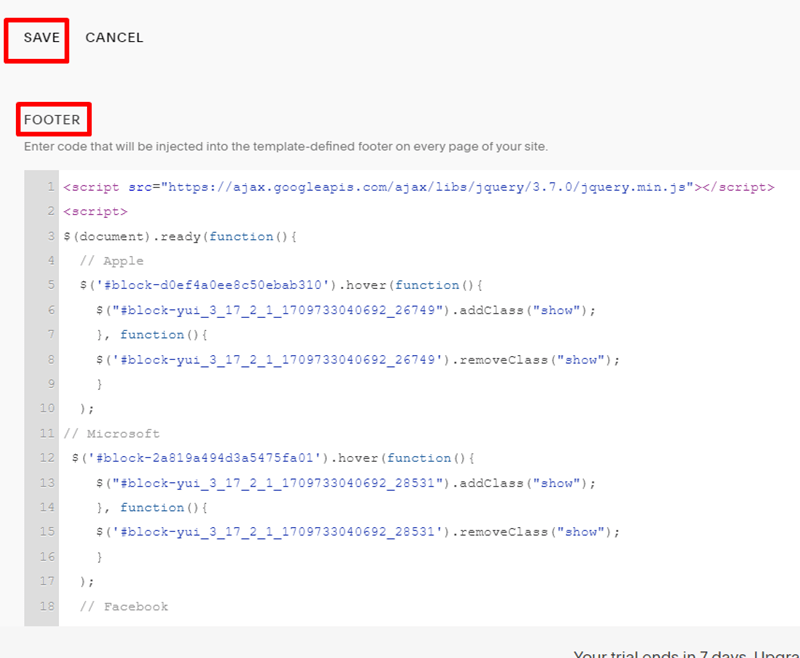
#3. Use this code to Code Injection – Footer (or Page Header Code Injection, Page where you use 8 Images)
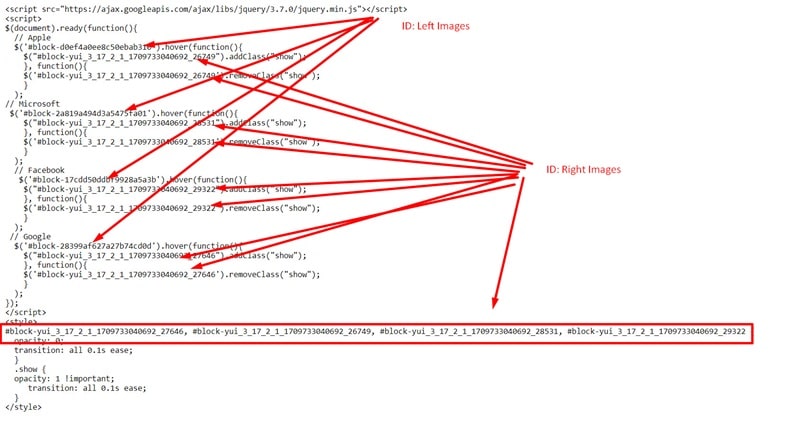
<script src="https://ajax.googleapis.com/ajax/libs/jquery/3.7.0/jquery.min.js"></script>
<script>
$(document).ready(function(){
  // Apple
  $('#block-d0ef4a0ee8c50ebab310').hover(function(){
    $("#block-yui_3_17_2_1_1709733040692_26749").addClass("show");
    }, function(){
    $('#block-yui_3_17_2_1_1709733040692_26749').removeClass("show");
    }
  );
// Microsoft
 $('#block-2a819a494d3a5475fa01').hover(function(){
    $("#block-yui_3_17_2_1_1709733040692_28531").addClass("show");
    }, function(){
    $('#block-yui_3_17_2_1_1709733040692_28531').removeClass("show");
    }
  );
  // Facebook
   $('#block-17cdd50ddbf9928a5a3b').hover(function(){
    $("#block-yui_3_17_2_1_1709733040692_29322").addClass("show");
    }, function(){
    $('#block-yui_3_17_2_1_1709733040692_29322').removeClass("show");
    }
  );
 // Google
  $('#block-28399af627a27b74cd0d').hover(function(){
    $("#block-yui_3_17_2_1_1709733040692_27646").addClass("show");
    }, function(){
    $('#block-yui_3_17_2_1_1709733040692_27646').removeClass("show");
    }
  );
});
</script>
<style>
#block-yui_3_17_2_1_1709733040692_27646, #block-yui_3_17_2_1_1709733040692_26749, #block-yui_3_17_2_1_1709733040692_28531, #block-yui_3_17_2_1_1709733040692_29322 {
  opacity: 0;
  transition: all 0.1s ease;
  }
  .show {
  opacity: 1 !important;
     transition: all 0.1s ease;
  }
</style>
#4. Explain