Some useful code/tips to adjust Logo on Squarespace 7.1
How to Make Logo Bigger on Squarespace
2 options to do this
First, you can edit Site Header
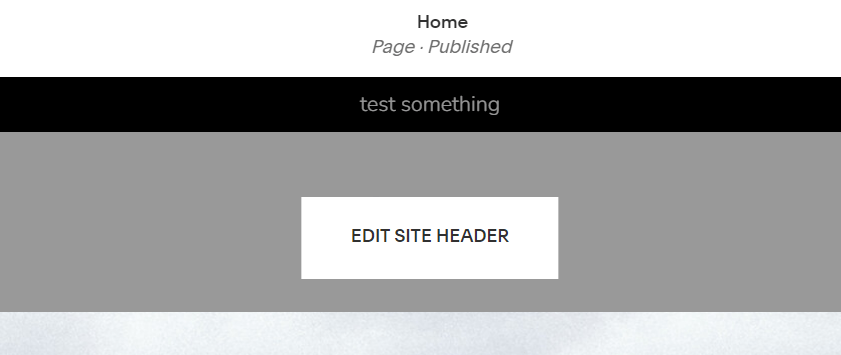
Choose Site title & logo
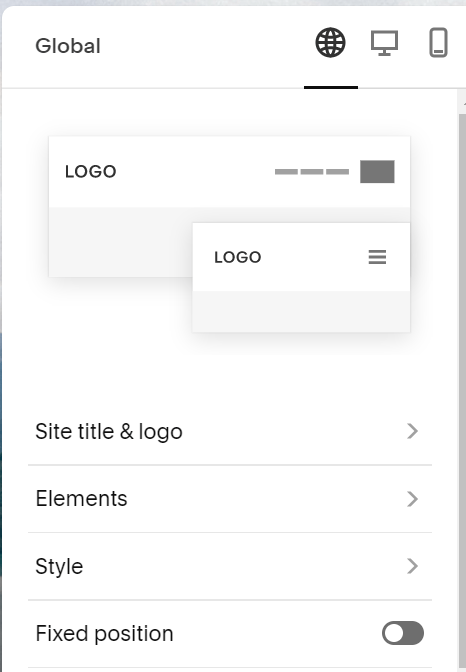
and adjust value
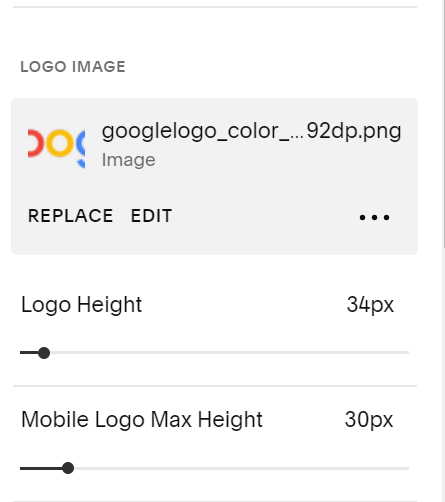
However, with this way, you only increase the size up to a certain limit. To increase more, you need to use custom code.
(Design > Custom CSS)
/* increase logo size */
.header-title {
    width: 60% !important;
    flex: 1 1 60% !important;
}
This code works with Squarespace 7.1. I just tested this code with a header layout type Left Nav – Middle Logo. With a different layout, the code may not work. You can message me with site url, I will check & adjust the code.
Make Logo Smaller on Scroll
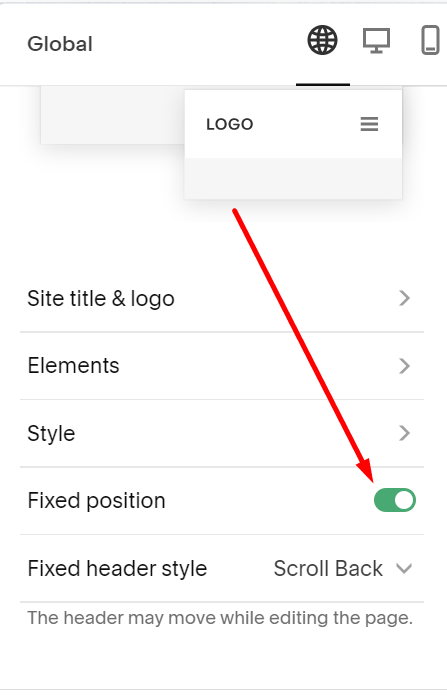
First, you need to enable Fixed Header
Next, add code to Design > Custom CSS
/* Header logo on scroll */
header#header img {
    transition: all 0.3s;
}
header#header.shrink img {
    max-height: 100px;
    transition: all 0.3s;
}
How to Change Logo on One Page
Business Plan/Higher, add code to Page Header
<style>
header#header img {
    content: url(https://cdn.pixabay.com/photo/2021/09/26/09/55/seal-6656983__340.jpg);
}
</style>
Personal Plan/Basic Plan, edit Page where you want to change Logo > Add a Code Block at bottom of page > Use this code
<style>
header#header img {
    content: url(https://cdn.pixabay.com/photo/2021/09/26/09/55/seal-6656983__340.jpg);
}
</style>
How to change Logo when Burger Overlay Menu is Open
Add code to Design > Custom CSS
body.header--menu-open header#header img {
    content: url(https://cdn.pixabay.com/photo/2021/09/26/09/55/seal-6656983__340.jpg);
}
How to change Footer Logo on One Page?
Business Plan/Higher, add to Page Header
<style>
footer.sections img {
    content: url(https://cdn.pixabay.com/photo/2021/09/26/09/55/seal-6656983__340.jpg);
}
</style>
Personal Plan/Basic Plan, add a Code Block in Footer > Use this code
<style>
footer.sections img {
    content: url(https://cdn.pixabay.com/photo/2021/09/26/09/55/seal-6656983__340.jpg);
}
</style>
Hide Logo on One Page
Business Plan/Higher: Add code to Page Header
<style>
header#header img {
visibility: hidden;
}
</style>
Personal Plan/Basic Plan: Edit Page > Add a Code Block (Bottom of page) > Use code
<style>
header#header img {
visibility: hidden;
}
</style>
Change Logo Link
Add code to Home > Settings > Advanced > Code Injection > FOOTER
<script>
  document.querySelector('.header-title a').setAttribute('href', 'https://google.com');
</script>
replace google with new url
Change Logo Link (One Page)
Add code to that Page Header
<script>
  document.querySelector('.header-title a').setAttribute('href', 'https://google.com');
</script>
Invert Logo Color (One Page)
Business Plan/Higher: Add code to Page Header
<style>
header#header img {
    filter: invert(1);
    -webkit-filter: invert(1);
}
</style>
Personal Plan/Basic Plan: Edit Page > Add a Code Block (bottom of page) > Use code
<style>
header#header img {
    filter: invert(1);
    -webkit-filter: invert(1);
}
</style>
Invert Logo Color when Burger Overlay Menu is Open
Add code to Design > Custom CSS
body.header--menu-open header#header img {
    filter: invert(1);
    -webkit-filter: invert(1);
}