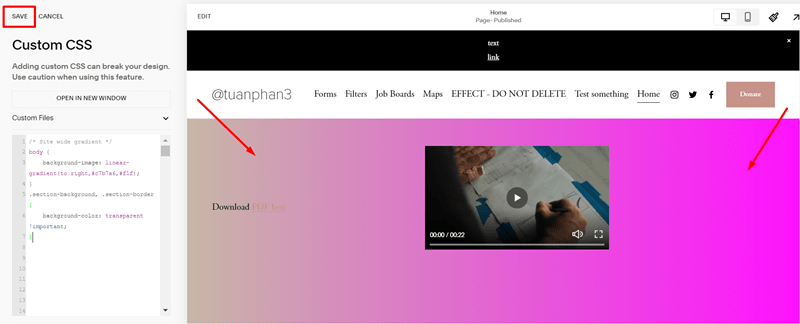
Gradient background (All Pages)
Add this code to CSS Custom Box and click Save
/* Site wide gradient */
body {
    background-image: linear-gradient(to right,#c7b7a6,#f1f);
}
.section-background, .section-border {
    background-color: transparent !important;
}
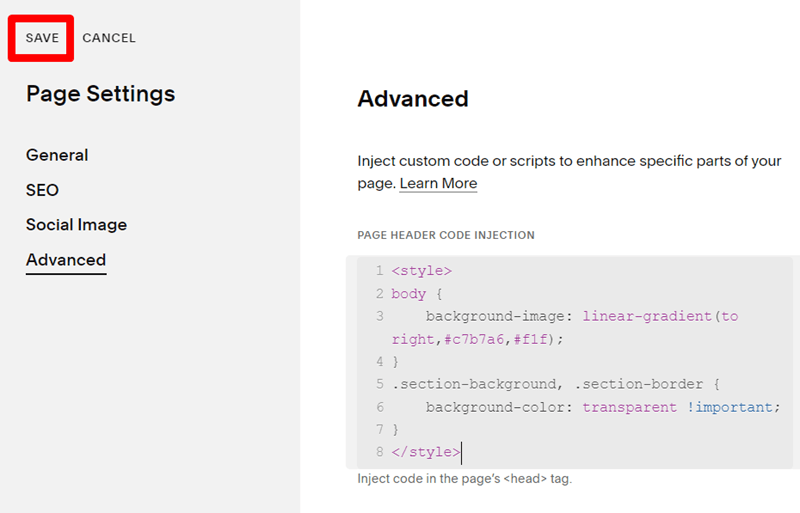
Gradient background (One Page)
#1. Add this code to Page Header Code Injection and click Save
<style>
body {
    background-image: linear-gradient(to right,#c7b7a6,#f1f);
}
.section-background, .section-border {
    background-color: transparent !important;
}
</style>
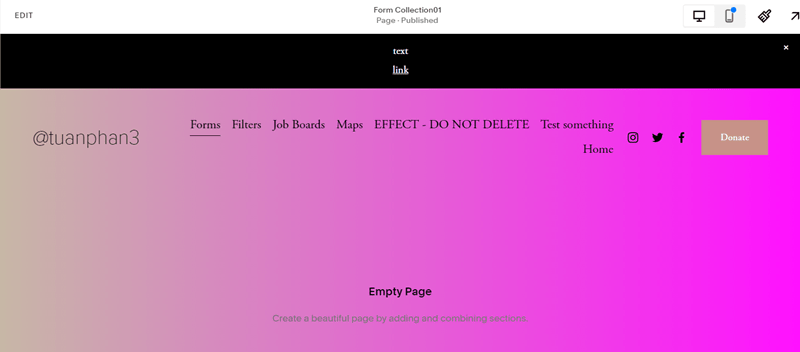
#2. You will have a result like this
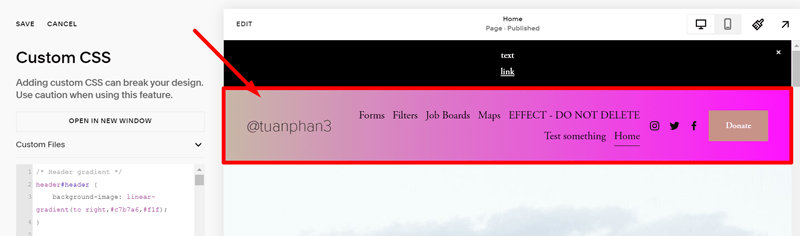
Header Gradient
Add this code to CSS Custom Box and click Save
/* Header gradient */
header#header {
    background-image: linear-gradient(to right,#c7b7a6,#f1f);
}
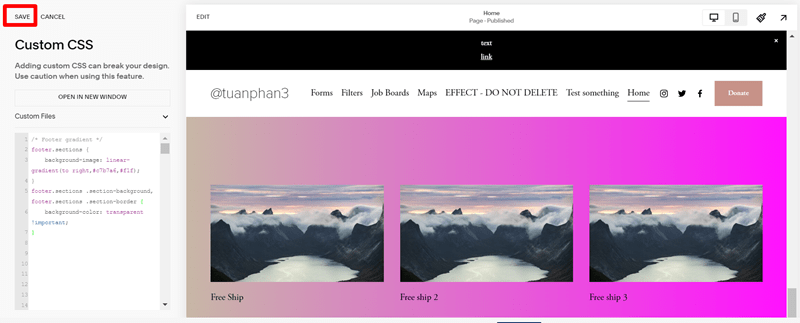
Footer Gradient
Add this code to CSS Custom Box and click Save
/* Footer gradient */
footer.sections {
    background-image: linear-gradient(to right,#c7b7a6,#f1f);
}
footer.sections .section-background, footer.sections .section-border {
    background-color: transparent !important;
}
Button Gradient
These codes include: Header button, Form block button, Button Block, Newsletter button, and Continue Shopping button.
Add the below code CSS Custom Box for these below buttons and click Save
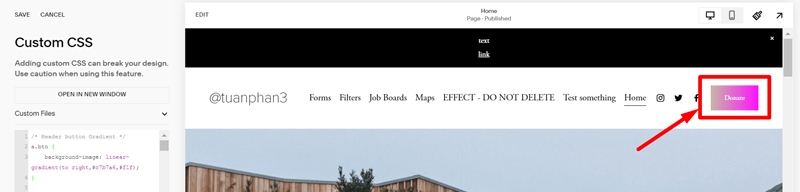
Header button Gradient
/* Header button Gradient */
a.btn {
    background-image: linear-gradient(to right,#c7b7a6,#f1f);
}
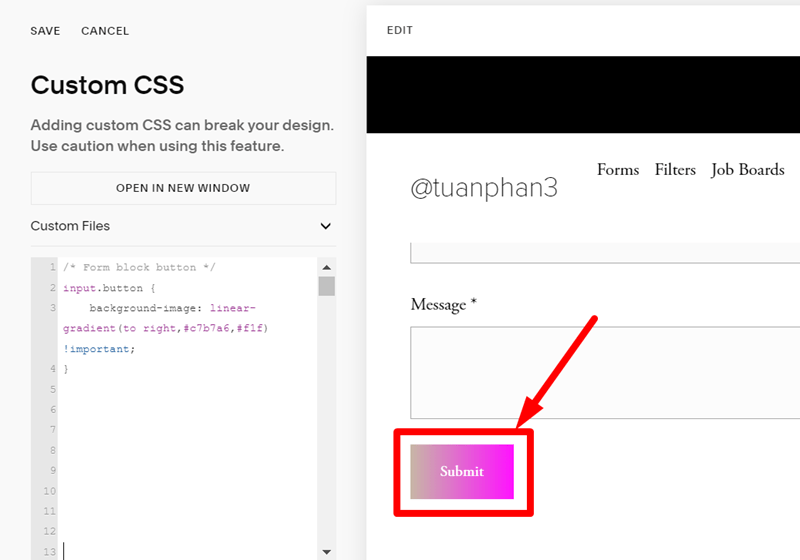
Form block button
/* Form block button */
input.button {
    background-image: linear-gradient(to right,#c7b7a6,#f1f) !important;
}
Button Block
/* Button Blocks */
div.button-block a {
    background-image: linear-gradient(to right,#c7b7a6,#f1f) !important;
}

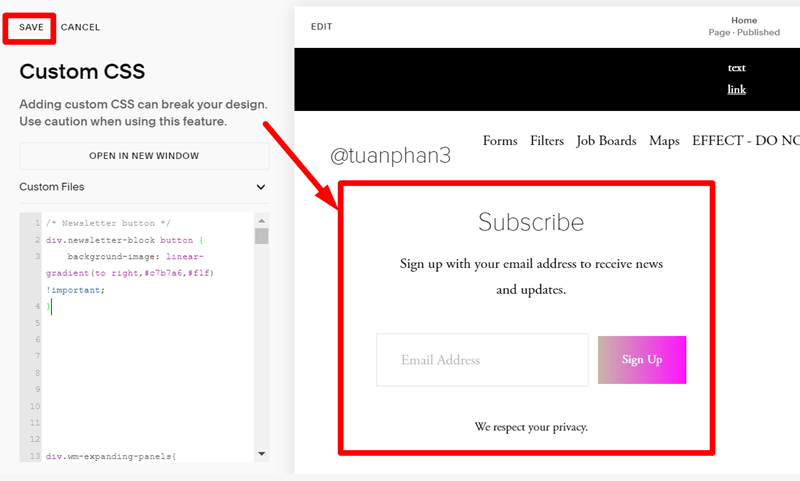
Newsletter button
/* Newsletter button */
div.newsletter-block button {
    background-image: linear-gradient(to right,#c7b7a6,#f1f) !important;
}
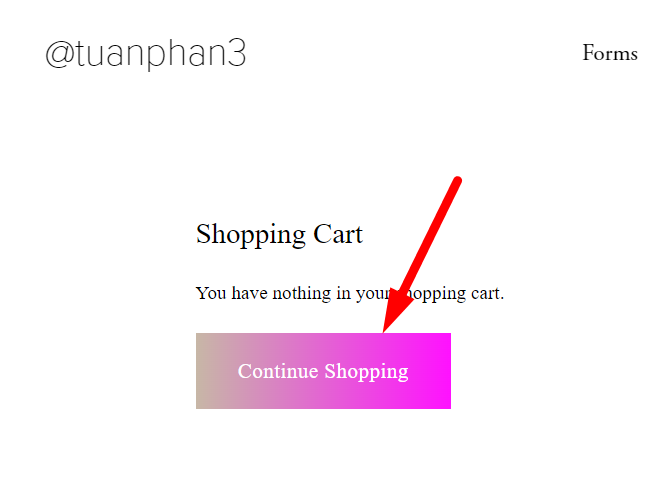
Continue Shopping button
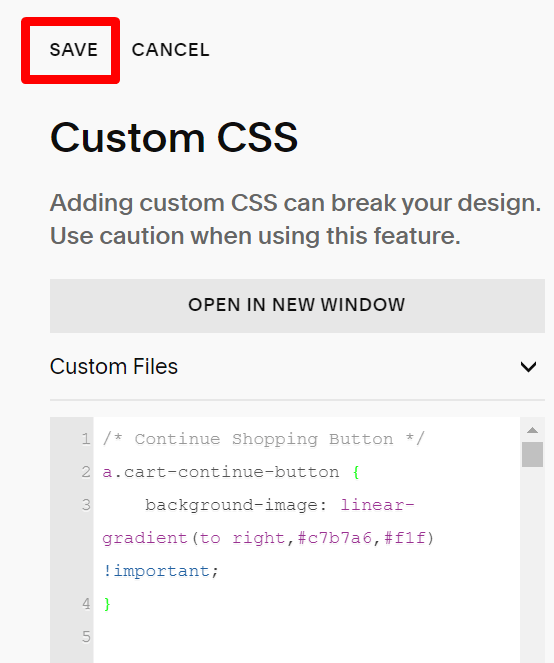
/* Continue Shopping Button */
a.cart-continue-button {
    background-image: linear-gradient(to right,#c7b7a6,#f1f) !important;
}
And the result