Demo: https://tuanphan-demo01.squarespace.com/hover-button-show-spotify-v2?noredirect
Password: abc
Suppose you have 2 Button Blocks and 2 Spotify Playlists
When hovering over each button, Spotify will appear below it
You can follow these steps:
#1. First, add 2 Button Blocks and 2 Spotify Playlists.

#2. Edit 2 Button Blocks, and use these URLs:
- #spotify01
- #spotify02
and make sure the option “Open Link in New Tab” is disabled.
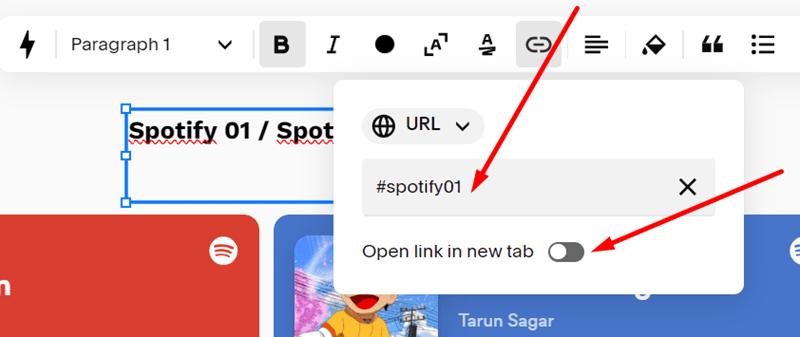
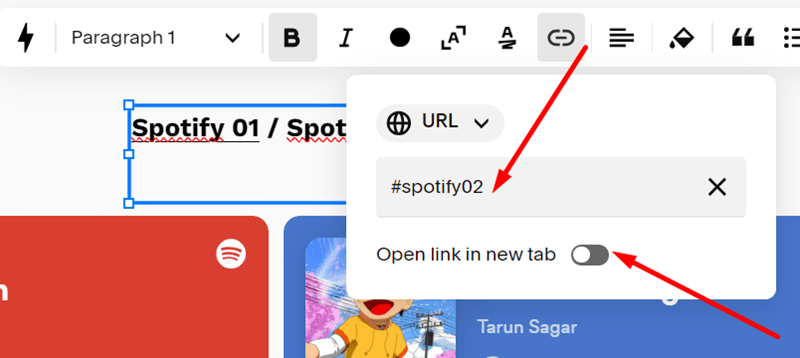
#3. Install Squarespace ID Finder to find the ID of Buttons and Spotify
In my example, we will have:
- Button 01: #block-8ea7e15d6a86fb66b028
- Button 02: #block-695b27bd0a0f9ad0d45d
- Spotify 01: #block-9321c4ef2afa1c4f53a2
- Spotify 02: #block-c1f89bc4d354d64f8fcb

#4. Use code to Code Injection – Footer (or Page Header Code Injection)
<script src="https://ajax.googleapis.com/ajax/libs/jquery/3.7.0/jquery.min.js"></script>
<script>
$(document).ready(function(){
  // Spotify 01
  $("#block-9321c4ef2afa1c4f53a2").closest('.fe-block').addClass('spotify01 show');
  // For Seller
$("#block-c1f89bc4d354d64f8fcb").closest('.fe-block').addClass('spotify02');

  // Spotify 01
  $('a[href="#spotify01"]').hover(function(){
    $(".spotify01").addClass("show");
    $('.fe-block:not(.spotify01)').removeClass('show');
    }
  );
// Spotify02
 $('a[href="#spotify02"]').hover(function(){
   $(".spotify02").addClass("show");
    $('.fe-block:not(.spotify02)').removeClass('show');
    }
  );
});
</script>
<style>
.spotify01 .code-block, .spotify02 .code-block {
    display: none;
}
  .show .code-block {
      display: block !important;
  }
  .show {
      z-index: 999999 !important;
  }
</style>

#5. Explain code
