These steps will help you add simple filter for Gallery Section. Note that this code is for the example below. Each different site will need to customize the code a bit. You can send me a message via contact form (contact page) if you can’t make it work.
Check demo here – Pass: abc
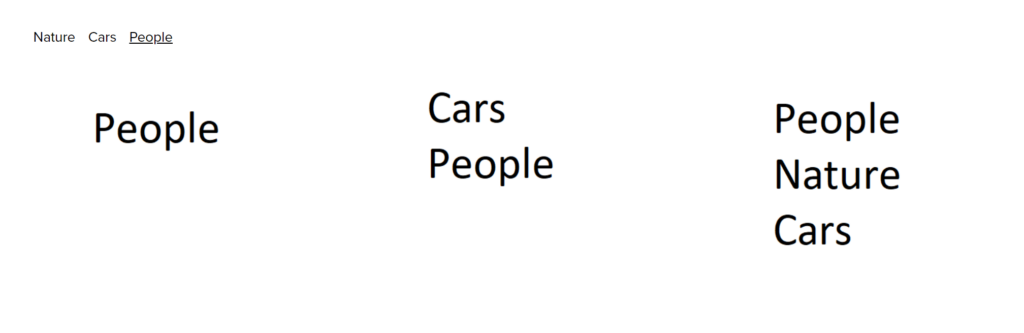
#1. Add code to Code Injection > Footer
<!-- Gallery filter -->
<div id="gallery-section-filter">
  <button class="show-all">Show all</button>
  <button class="filter-nature">Nature</button>
  <button class="filter-cars">Cars</button>
  <button class="filter-people">People</button>
</div>
<script src="https://ajax.googleapis.com/ajax/libs/jquery/3.7.0/jquery.min.js"></script>
<script>
$(document).ready(function(){
    $('figure').each(function(){
    var layclass = $(this).find('span').attr('class');
    console.log(layclass);
    $(this).addClass(layclass);
});
  $('#gallery-section-filter').css('display','block').insertBefore('.gallery-grid-wrapper');
  $('.filter-nature').click(function(){
  	$('figure:not([class*="nature"])').hide();
    $('figure.nature').fadeIn(1000);
    $(this).css('text-decoration','underline');
    $('button:not([class*="nature"]').css('text-decoration','none');
  });
   $('.filter-cars').click(function(){
  	$('figure:not([class*="cars"])').hide();
     $('figure.cars').fadeIn(1000);
     $(this).css('text-decoration','underline');
     $('button:not([class*="cars"]').css('text-decoration','none');
  });
   $('.filter-people').click(function(){
     $('figure.people').fadeIn(1000);
  	$('figure:not([class*="people"])').hide();
     $(this).css('text-decoration','underline').fadeIn(3000);
     $('button:not([class*="people"]').css('text-decoration','none');
  });
});
</script>
You need to adjust
- Line 3: actually I don’t use this text “show all” on my example, so you can ignore it
- Line 4, 5, 6: 3 filter texts: Nature, Cars, People
- Line 17 to Line 22: it means, if users click on “Nature”, It will hide all items that do not contain the word nature, and show items contain “nature”. (it is related to code #4 [scroll down to #4, you will see])
- Line 23 to Line 28 & Line Line 29 to Line 34: Similar
#2. Add this code to Custom CSS
#gallery-section-filter, .show-all {
  	display: none;
  }
#gallery-section-filter button {
    background: none !important;
    border: none !important;
}
#gallery-section-filter .active {
  	text-decoration: underline;
  }
#3. Enable Gallery Section Caption
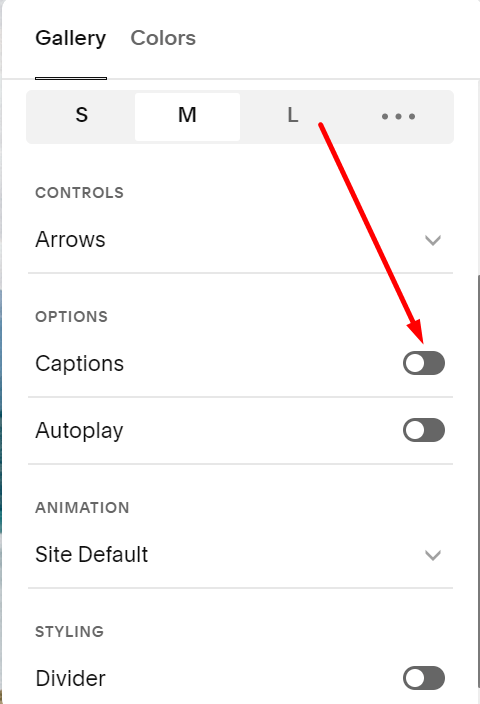
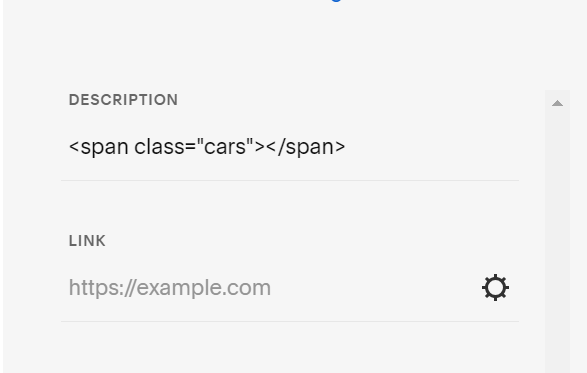
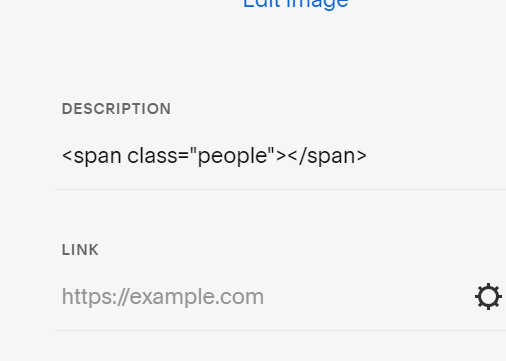
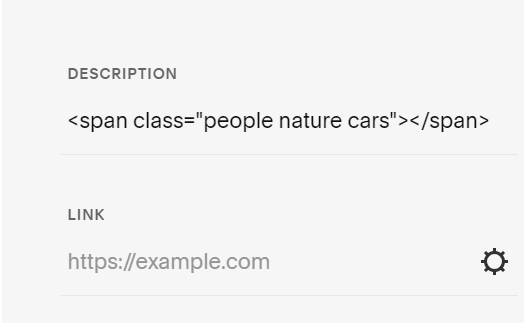
#4. Edit each image in Gallery Section > Paste this code
<span class="cars"></span>