Read First
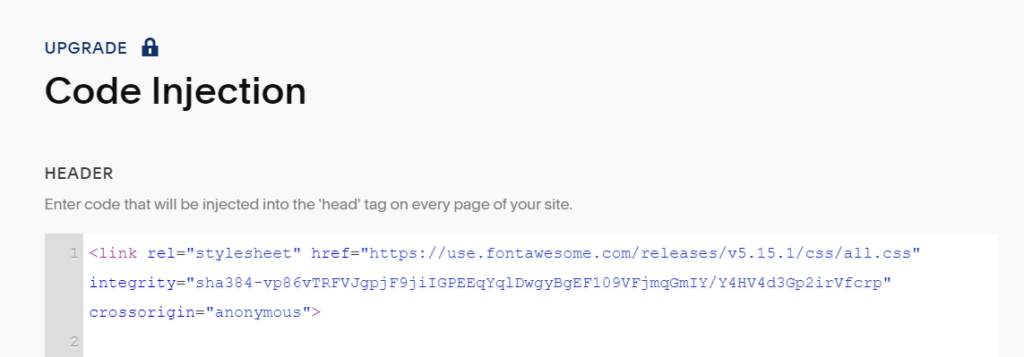
First, you need to add this code to Code Injection > Header
(If you use Personal Plan, you can add via Code Block in Site Footer)
<link rel="stylesheet" href="https://use.fontawesome.com/releases/v5.15.1/css/all.css" integrity="sha384-vp86vTRFVJgpjF9jiIGPEEqYqlDwgyBgEF109VFjmqGmIY/Y4HV4d3Gp2irVfcrp" crossorigin="anonymous">
Email Icon
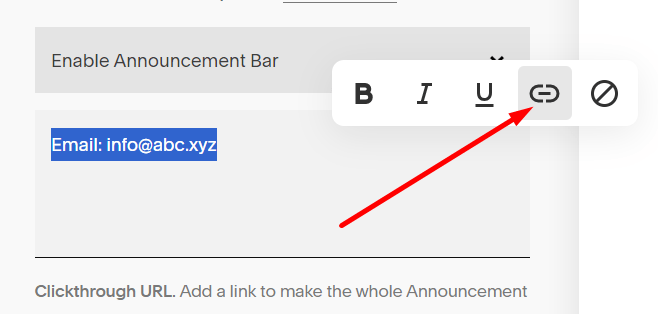
First, highlight email text > Click Link Icon
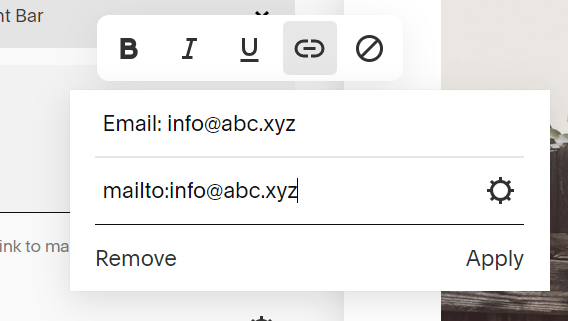
You can use this mailto: format
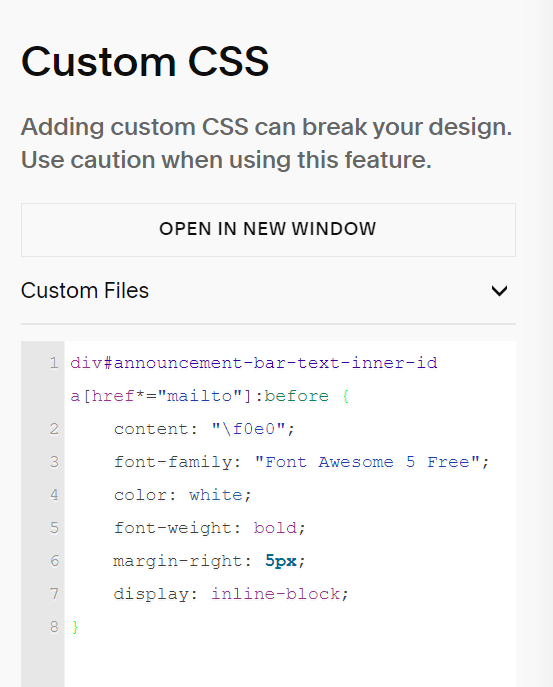
Next, use this code to Custom CSS box
div#announcement-bar-text-inner-id a[href*="mailto"]:before {
    content: "\f0e0";
    font-family: "Font Awesome 5 Free";
    color: white;
    font-weight: bold;
    margin-right: 5px;
    display: inline-block;
}
Result

Phone Icon
Highlight Phone text/number > Add Link > Use this format
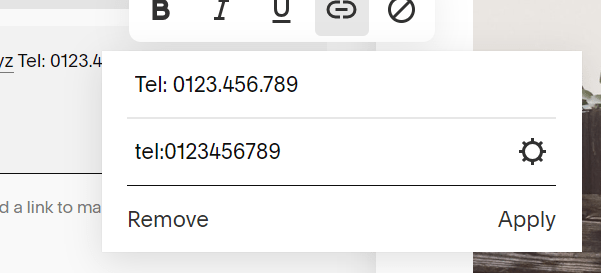
Then use this code to Custom CSS box
div#announcement-bar-text-inner-id a[href*="tel"]:before {
    content: "\f095";
    font-family: "Font Awesome 5 Free";
    color: white;
    font-weight: bold;
    margin-right: 5px;
    display: inline-block;
}
Address Icon
Highlight text > Add the link

then use this code to Custom CSS box
div#announcement-bar-text-inner-id a[href*="address"]:before {
    content: "\f279";
    font-family: "Font Awesome 5 Free";
    color: white;
    font-weight: bold;
    margin-right: 5px;
    display: inline-block;
}
a[href*="#address"] {
    border: none !important;
    text-decoration: none !important;
    pointer-events: none;
}

Remove Underline
Use this CSS code
div#announcement-bar-text-inner-id a {
    text-decoration: none !important;
}
Facebook Icon
Add text: FA, then add Facebook URL then use CSS code
div#announcement-bar-text-inner-id a[href*="facebook"] {
    font-size: 0;
}
div#announcement-bar-text-inner-id a[href*="facebook"]:before {
    font-size: 18px;
    content: "\f09a";
    font-family: "Font Awesome 5 Brands"
}
Reference: https://fontawesome.com/search?q=facebook&o=r

Instagram Icon
Add text: IN then add Instagram URL, then use CSS code
div#announcement-bar-text-inner-id a[href*="instagram"] {
    font-size: 0;
}
div#announcement-bar-text-inner-id a[href*="instagram"]:before {
    font-size: 18px;
    content: "\f16d";
    font-family: "Font Awesome 5 Brands"
}
Reference: https://fontawesome.com/search?q=instagram&o=r&m=free
LinkedIn icon
Add LI text then add LinkedIn url then use CSS code
div#announcement-bar-text-inner-id a[href*="linkedin"] {
    font-size: 0;
}
div#announcement-bar-text-inner-id a[href*="linkedin"]:before {
    font-size: 18px;
    content: "\f08c";
    font-family: "Font Awesome 5 Brands"
}
Reference: https://fontawesome.com/search?q=linkedin&o=r&m=free
Note: All icons are Font Awesome version 5