Change announcement bar background color (one page)
#1. Add this code to Page Header Code Injection and click Save
<!-- change announcement bar background color - One Page -->
<style>
.sqs-announcement-bar {
    background-color: #f1f !important;
}
</style>
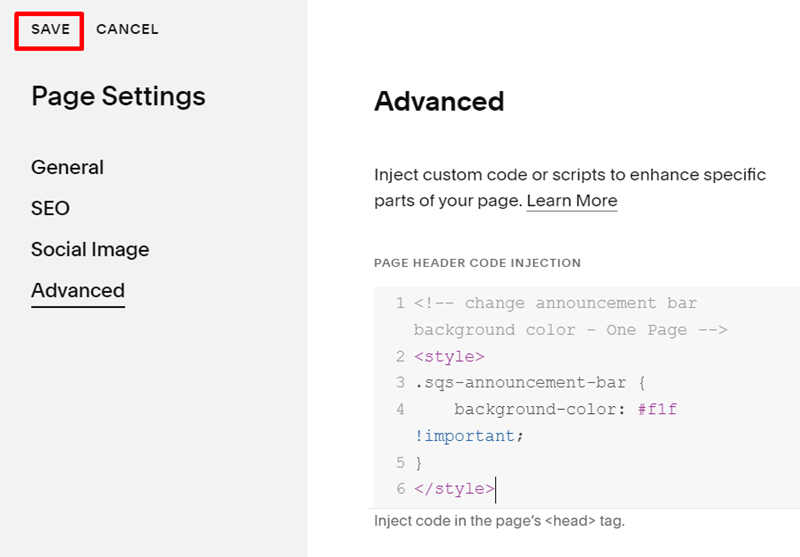
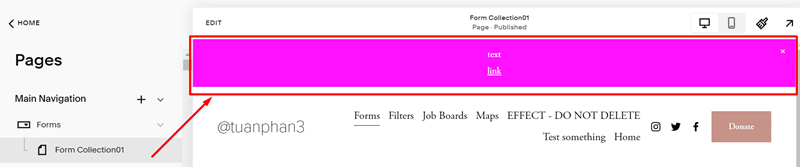
#2. You will have a result like this
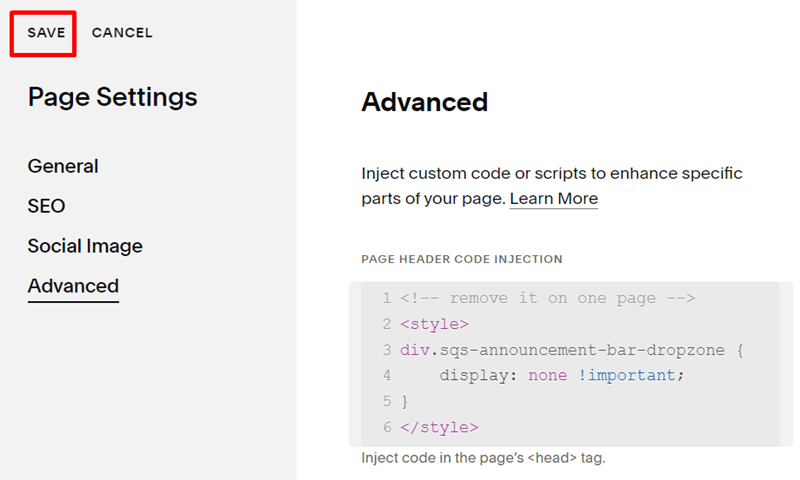
Remove it on one page
Add this code to Page Header Code Injection and click Save
<!-- remove it on one page -->
<style>
div.sqs-announcement-bar-dropzone {
    display: none !important;
}
</style>
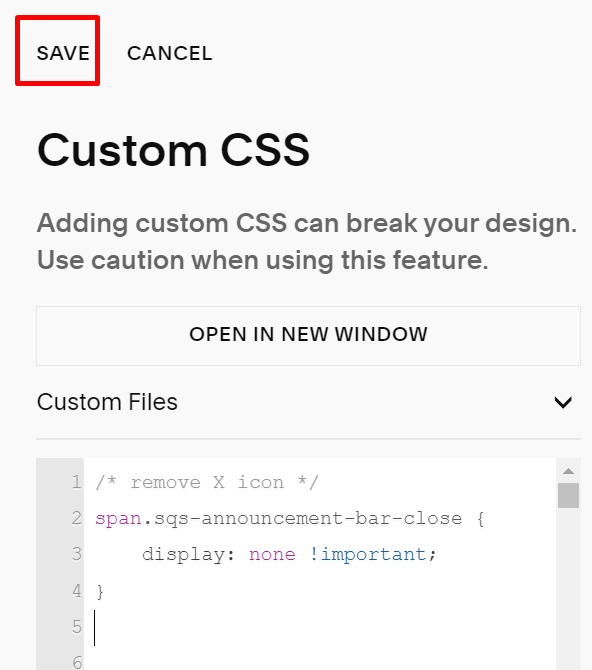
Remove X icon
Add this code to CSS Custom Box and click Save
/* remove X icon */
span.sqs-announcement-bar-close {
    display: none !important;
}
Change text color
Add this code to CSS Custom Box and click Save
/* change text color */
div#announcement-bar-text-inner-id * {
    color: #000 !important;
}

Keep current color when overlay menu is open
Add this code to CSS Custom Box and click Save
/* keep current color when overlay menu is open */
div#announcement-bar-text-inner-id * {
    color: #000 !important;
}
.sqs-announcement-bar {
    background-color: #f1f !important;
}

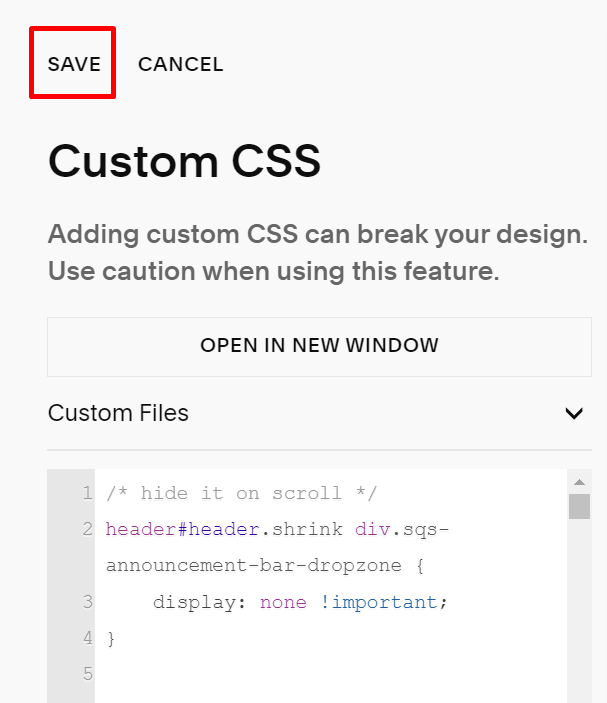
Hide the announcement bar on the scroll
Add this code to CSS Custom Box and click Save
/* hide it on scroll */
header#header.shrink div.sqs-announcement-bar-dropzone {
    display: none !important;
}
Move the announcement bar under the header
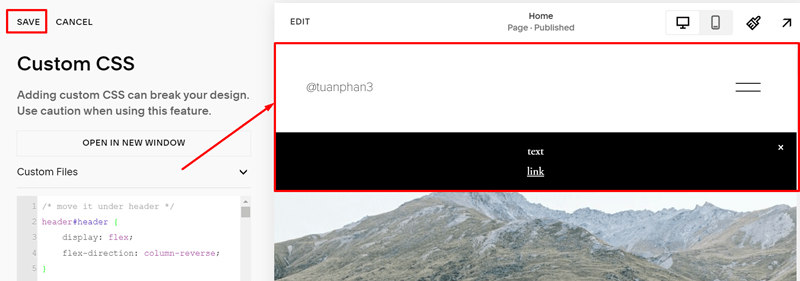
Add this code to CSS Custom Box and click Save
/* move it under header */
header#header {
    display: flex;
    flex-direction: column-reverse;
}
Apply custom font
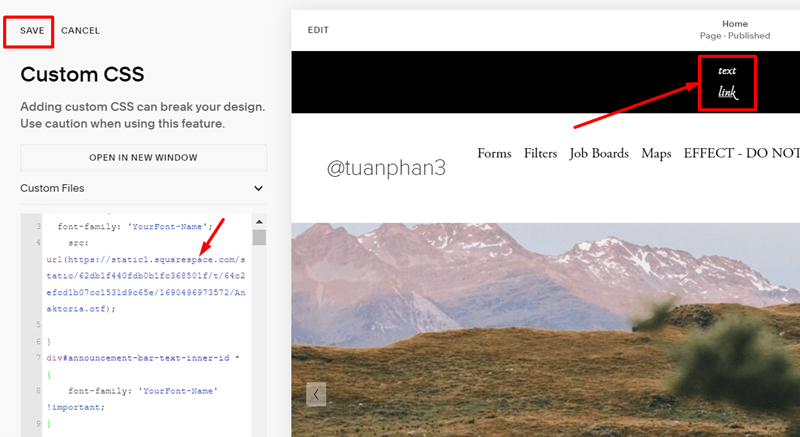
Add this code to CSS Custom Box and click Save (you can change the example URL font to the URL that you want)
/* apply custom font */
@font-face {
  font-family: 'YourFont-Name';
    src: url(https://static1.squarespace.com/static/62db1f440fdb0b1fc368501f/t/64c2efcd1b07cc1531d9c65e/1690496973572/Anaktoria.otf);

}
div#announcement-bar-text-inner-id * {
    font-family: 'YourFont-Name' !important;
}
Reduce height
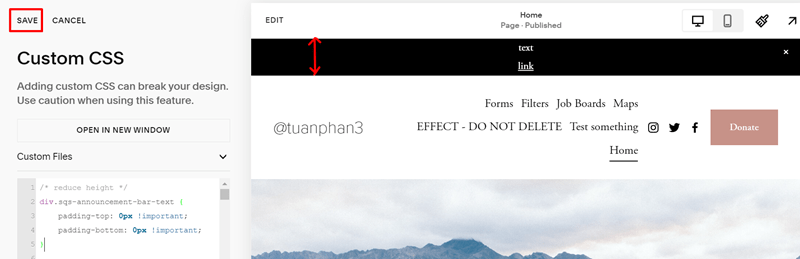
Add this code to CSS Custom Box and click Save
/* reduce height */
div.sqs-announcement-bar-text {
    padding-top: 0px !important;
    padding-bottom: 0px !important;
}
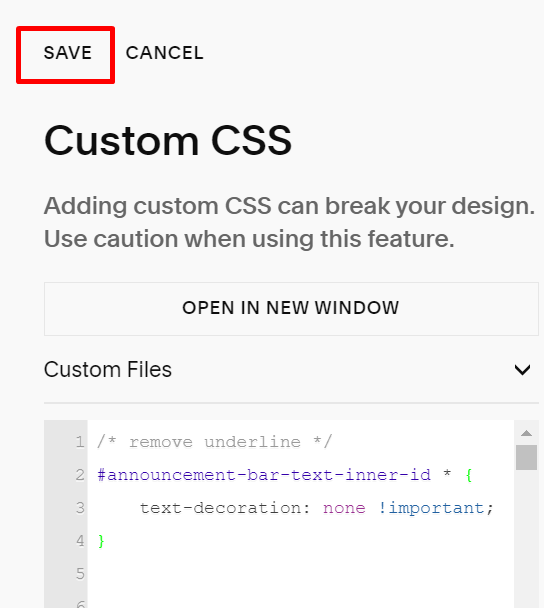
Remove link underline
Add this code to CSS Custom Box and click Save
/* remove underline */
#announcement-bar-text-inner-id * {
    text-decoration: none !important;
}
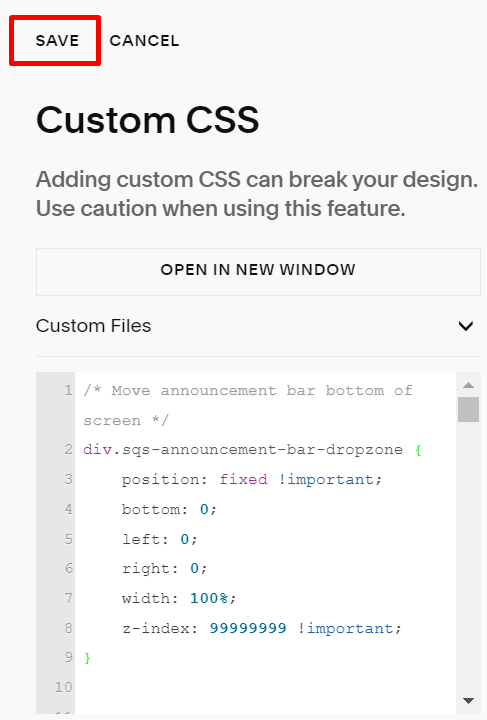
Move the announcement bar to the bottom of the screen
Add this code to CSS Custom Box and click Save
div.sqs-announcement-bar-dropzone {
    position: fixed !important;
    bottom: 0;
    left: 0;
    right: 0;
    width: 100%;
    z-index: 99999999 !important;
}
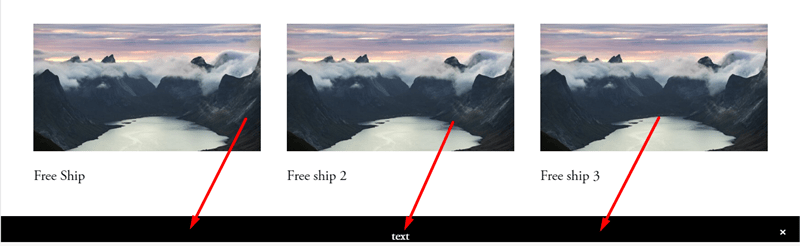
And you will have this
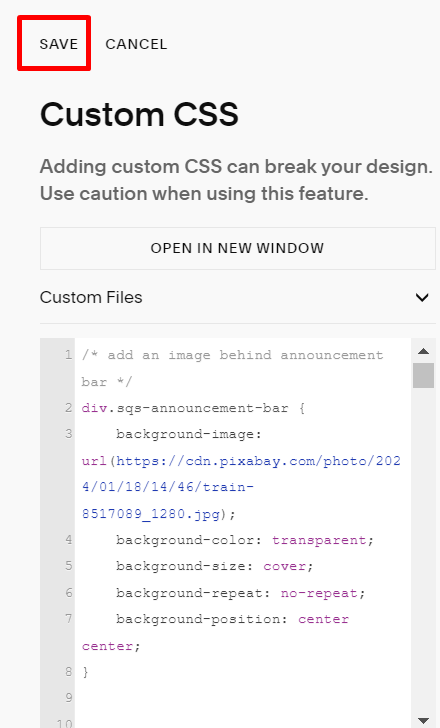
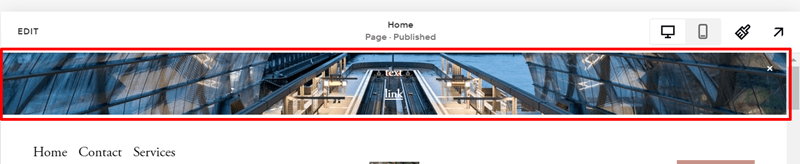
Add an image behind the announcement bar
Add this code to CSS Custom Box and click Save
/* add an image behind announcement bar */
div.sqs-announcement-bar {
    background-image: url(https://cdn.pixabay.com/photo/2024/01/18/14/46/train-8517089_1280.jpg);
    background-color: transparent;
    background-size: cover;
    background-repeat: no-repeat;
    background-position: center center;
}
The result is like this
Announcement Bar Button
To add a button to the Announcement Bar, first, you add a text, for example: View More
Next, highlight “View More” > Click Link Icon > Add your url, for example: https://google.com > Apply

Next, use this code to Custom CSS box to turn the View More text link to the button
div.sqs-announcement-bar-text a {
    text-decoration: none !important;
    background-color: #f1f;
    padding: 5px 20px;
    border-radius: 20px;
}

Result:
